BASTOS Language Manual

BASTOS Language Manual
Presentation
Hardware
BASTOS-S is a computer system composed of two elements connected by a DIN-5 serial cable:
-
Minitel terminal (Minitel 1B, Minitel 2, or Magis Club): provides the Videotex screen (40 columns × 25 lines with semi-graphic display), AZERTY keyboard with function keys, and electrical power via the peripheral port.
-
SonOff Basic module (R2, R3, or R4) equipped with an esp8266 or esp32c (ESP32-C3) microcontroller:
- RISC-V CPU 160 MHz (R4) or Tensilica Xtensa 80 MHz (R2/R3)
- RAM: ~56 KB for BASTOS on R4, ~32 KB on R2/R3 (variables, database, program)
- Local disk: ~1.4 MB on R4, ~512 KB on R2/R3 (LittleFS on Flash) for programs (.bas), saved variables, and database
- WiFi 802.11 b/g/n for Internet connection
- Serial port: 1200 and 4800 bps (Minitel 1B), up to 9600 bps (Minitel 2 and Magis Club)
It’s possible to develop and test BASTOS programs on a PC (Windows/Linux) without any Minitel hardware, using a web emulator (minterm) connected to a local BASTOS interpreter exposed over WebSocket. See the development guide (French only). Programs developed this way can be transferred to BASTOS-S via FTP.
The BASTOS Language
BASTOS is a BASIC dialect designed specifically to run on Minitel terminals via serial connection. Programs are made of numbered lines executed in order; line 0, or no line number, is interpreted immediately (interactive mode).
10 PRINT "Hello, World!"
20 PAUSE 1000
30 GOTO 10
The language offers the following capabilities:
- Minitel control: Videotex display, cursor positioning, attributes (colors, size, blinking), semi-graphics
- Local storage: save and load programs and variables on local disk (LittleFS)
- Database: persistent key/value storage with
GET,PUT,DBcommands - Internet connectivity:
- WiFi connection (
WIFIcommand) - Access to Minitel servers via TCP or WebSockets (
MINITELcommand) - File transfer via FTP (
FTPcommand)
- WiFi connection (
- Mathematical functions: trigonometry, logarithms, square root, random
- Arrays: dimensioned variables with
DIM - Control structures:
FOR/NEXTandWHILE/WENDloops,IF/THEN/ELSEbranching,GOTO,GOSUB/RETURN, namedLABELs
BASTOS Modes
BASTOS has three operational modes:
-
Interactive mode: Entered lines are interpreted immediately. If a line has a line number, it is stored in the program. This is the command entry and program line editing mode.
-
Execution mode: A program is running (started with
RUNorGOTO). The keyboard can be read withINPUT,VKEY, andINKEY$. The screen is controlled byPRINTand TTY commands. Press ESC twice to exit execution and return to interactive mode. -
Connected mode: BASTOS is connected to a server via the
MINITELcommand. Keyboard input is sent to the server, and screen output displays the server’s response. Press ESC twice to exit connected mode and return to the previous mode (either execution or interactive).
flowchart TD
    start([Start])
    interactive["Interactive mode"]
    execution["Execution mode"]
    connected["Connected mode"]

    start --> interactive
    interactive -->|RUN / GOTO| execution
    interactive -->|MINITEL| connected
    execution -->|ESC ESC| interactive
    execution -->|MINITEL| connected
    connected -->|ESC ESC| execution
    connected -->|ESC ESC| interactive
    linkStyle default stroke:#3f3,stroke-width:2px,color:green;
At startup, if an autoexec.bas file exists on the local disk, the command
RUN "autoexec.bas" is automatically executed.
Example autoexec.bas program:
10 RUN "connect.bas"
Line editing (interactive mode)
In interactive mode, each line being typed can be edited before it is validated:
- ◄ / ► (left/right arrows): move the cursor within the line being typed, without deleting anything.
- CORRECTION (key 127): deletes the character before the cursor.
- ANNULATION (key 1): clears the whole line being typed.
- ▲ (up arrow): recalls the last validated line for further editing —
the last numbered program line (same as
EDIT linenumwould do), or the last immediate command typed if no numbered line has been validated since. Does nothing if no line has been validated yet, or if the recalled numbered line has since been deleted from the program. - Validation (ENVOI/Enter, REPETITION, SUITE, RETOUR, SOMMAIRE or
GUIDE): submits the line. If it contains a syntax error, BASTOS beeps
(BEL character) and displays the error, but stays in edit mode with
the typed text preserved, ready to be fixed and resubmitted — the line is
never lost or silently discarded.
- SUITE validates like ENVOI, but if the validated line is a numbered program line, it also automatically loads the next program line for editing, if there is one.
- RETOUR validates like ENVOI, but automatically loads the
previous program line for editing, if there is one. SUITE and
RETOUR make it easy to step through and fix a run of lines without
retyping
EDITeach time.
- ESC ESC (two consecutive presses): abandons the line being typed
without validating it. If it had been recalled with
EDITor the up arrow and then modified, the original line in the program is left unchanged, even after a failed validation attempt.
| From state | Key(s) | Effect | To state |
|---|---|---|---|
| Empty line | Character, ◄ or ► | insert / move the cursor | Editing |
| Editing | Character, ◄, ► or CORRECTION | modify the line | Editing |
| Editing | ANNULATION | clears the whole line | Empty line |
| Empty line | ▲ | recalls the last validated line | Editing |
| Editing | Validation, valid syntax | the line is stored | Empty line |
| Editing | SUITE, valid syntax, next line exists | the line is stored, the next line is loaded | Editing |
| Editing | RETOUR, valid syntax, previous line exists | the line is stored, the previous line is loaded | Editing |
| Editing | Validation, syntax error | beep + error message | Error (stays in edit mode) |
| Error (stays in edit mode) | Fix, then Validation | the fixed line is stored | Empty line |
| Error (stays in edit mode) | ESC ESC | abandons the line | Empty line |
The EDIT [linenum] command has a similar effect to the up arrow, but lets
you explicitly target a program line:
EDITalone, orEDIT 0, edits the first line of the program. Does nothing if the program is empty.EDIT linenumedits linelinenumif it exists, otherwise the first following existing line (same logic asGOTO). Does nothing if no line matches (empty program, orlinenumpast the last line).
Program commands
| Command | Description |
|---|---|
RUN |
Run from first line |
RUN linenumber |
Run from a specific line |
RUN "file.bas" |
Load and run ASCII program |
RUN "file.bst", linenumber |
Load and run binary program and variables from a specific line |
LIST |
List 20 lines from current position |
LIST linenum |
List 20 lines starting from linenum |
LIST linenum, count |
List count lines from linenum |
LL |
Same as LIST |
EDIT [linenum] |
Recall a program line for editing (see Line editing) |
NEW |
Delete all program lines and vriables |
CLEAR |
Clear variables and stop execution |
END |
Terminate program and clear variables |
STOP |
Pause execution |
CONT |
Resume after STOP |
SAVE "file.bas" |
Save program as ASCII |
SAVE "file.bst" |
Save program and variables as binary |
SAVE "file.var" |
Save variables only |
LOAD "file.bas" |
Load ASCII program |
LOAD "file.bst" |
Load program and variables from binary |
LOAD "file.var" |
Load variables only |
ERASE "pattern" |
Delete every file or empty directory matching a glob pattern (*, ?) or plain name |
CAT |
List files |
CAT "pattern" |
List files matching a glob pattern (*, ?), e.g. CAT "*.bas" |
MD "name" |
Create a directory inside the current directory |
CD "name" |
Move into a directory |
CD ".." |
Move up to the parent directory |
RD "name" |
Remove an empty directory |
MOVE "pattern", "dest" |
Move/rename files matching pattern to dest |
MOVE "pattern", ".." |
Move matching files up to the parent directory |
MOVE "dir", "dest" |
Move directory dir into dest (an existing directory or ..), or rename it to dest if dest does not exist |
FREE |
Display memory usage |
RESET |
Reset system |
BASTOS |
Display version info and init default screen attributes |
Names passed to MD, CD, RD, MOVE, SAVE, LOAD and ERASE must be
plain names relative to the current directory: an absolute path or a name
containing / is rejected (error). .. is only accepted by CD (to move
up one level) and by MOVE’s dest (to move files up into the parent
directory) — in both cases refused if already at the top of the disk.
ERASE deletes both files and directories matched by its pattern, but for a
directory it only ever does what RD does: remove it if empty. A matched
directory that still has files in it is left alone rather than causing an
error, as long as at least one other match was actually deleted.
When MOVE’s first parameter is the name of an existing directory (not a
pattern), the directory itself is moved: into dest if dest is an existing
directory (or ..), or renamed to dest if nothing has that name yet. It is
an error if dest is an existing file, or if dest already contains an
entry with the same name as the moved directory.
Input / Output
Output to screen
The PRINT command prints expressions to the screen, followed by a newline. ?
is a shorthand for PRINT.
PRINT expr [, expr ...]      ' Space between items
PRINT expr ; expr            ' No space between items
PRINT                        ' Print empty line
? expr                       ' Same as PRINT expr
Use a trailing ; to suppress the final newline:
10 PRINT "Enter value: ";
20 INPUT n
Numeric expressions and string variables can be mixed freely:
PRINT "Result: "; a * 2
PRINT "Name: " n$ ", age: " a
Position output with AT line, col:
AT 5, 10; "Hello"
Minitel Screen Control
The screen has two display modes: Videotex (40 columns) and
Téléinformatique (80 columns). Line 0 is a status line; the display area
consists of 24 lines below it. Accessing line 0 with LINE0 (equivalent to
AT 0,1) saves the current cursor position and attributes. To exit line 0
and return to the display area, use AT or "\n" (newline); "\n"
restores both the saved position and attributes.
Characters are drawn from two sets: G0 (ASCII) for regular text, and G1 (semi-graphics) for pixel-based graphics. On G0, attributes are either local (INK, INVERSE, FLASH, SIZE) or global (PAPER, UNDERLINE); global attributes must be preceded by a space separator. On G1, all attributes are local and require no separator; however, SIZE and INVERSE are not supported, and UNDERLINE controls disjoint semi-graphics.
TTY functions return a string containing the corresponding escape sequence. Used
as a statement, they behave as PRINT ...; (output the sequence with no
trailing newline). Used as an expression, they can be assigned or embedded in a
string:
CLS                      ' statement: sends clear-screen sequence
c$ = CLS                 ' expression: stores the sequence in c$
PRINT INK 3 "hello"      ' inline: set color then print
m$ = AT 10, 13           ' build a string with positioning
m$ = m$ + "hi"
In Videotex mode (MODE 0 or MODE 1), TTY functions emit Videotex sequences. In
80-column mode (MODE 2), they emit CSI sequences (ESC [ ...).
Screen
CLS                  ' Clear screen
CLEOL                ' Clear to end of line
CURSOR n             ' 0=hide, 1=show cursor
BEEP                 ' Sound bell
MODE n               ' Screen mode: 0/1 = 40 cols Videotex, ≥2 = 80-column
LINE0                ' Move cursor to line 0, column 1 (status line)
ECHO n               ' 0=echo off, 1=echo on
G0                   ' Switch to ASCII character set
G1                   ' Switch to semi-graphic character set
SCROLL 0             ' Page mode
SCROLL 1             ' Scroll mode
SCROLL               ' In scroll mode, scrolls up
SCROLL UP            ' In scroll mode, scrolls up
SCROLL DOWN          ' In scroll mode, scrolls down
INS LINE             ' Insert line
INS CHAR n           ' 0=off, 1=on — toggle insert-character mode
DEL LINE             ' Delete line
DEL CHAR             ' Delete character
INS CHAR 1 puts the terminal into insert mode: further printed
characters push the rest of the line right instead of overwriting it.
INS CHAR 0 turns it back off. Unlike most other TTY functions, none of
INS/DEL’s forms depend on the current screen mode (40 vs 80 columns) —
the same codes are sent either way.
MODE 0 and MODE 1 both switch to 40-column Videotex mode, but aren’t
identical: MODE 0 sends only the bare column-width switch, while MODE 1
also resends the full terminal init sequence (local echo off, scroll mode,
lowercase keyboard, extended keyboard) — the same one sent automatically at
startup. Use MODE 1 to fully reset the terminal back to its normal state
(for example, after MODE 2), and MODE 0 when only the column width
itself needs to change.
Example demonstrating DEL CHAR:
10 CLS
20 FOR i = 1 TO 24
30 PRINT REP$ 40, "*";
40 NEXT i
50 AT 12, 15
60 PRINT ">>> DEL CHAR <<<"
70 PAUSE 1000
80 AT 12, 20
90 FOR i = 1 TO 20
100 DEL CHAR
110 PAUSE 100
120 NEXT i
This program fills the screen with asterisks (lines 10-40), displays a message at the center (line 50-60), then positions the cursor at line 12, column 20 and deletes 20 consecutive characters, creating a visible “hole” in the display.
Cursor positioning
AT line, col
Lines and columns are 1-indexed.
In Videotex mode, relative cursor movements can be inserted in strings using hex codes:
PRINT "Hello\x08\x08Hi" ' Backspace twice, print "Hi"
| Code | Hex | Movement |
|---|---|---|
| 8 | \x08 |
Left (backspace) |
| 9 | \x09 |
Right (tab) |
| 10 | \x0a |
Down (line feed) |
| 11 | \x0b |
Up (vertical tab) |
Example drawing a frame using G1 semi-graphic characters:
10 CLS
30 REM "Cadre 20x10 au centre"
40 x = 10
50 y = 7
60 w = 20
70 h = 10
80 REM "Coin haut gauche"
90 AT y, x
100 PRINT G1 "7";
110 REM "Ligne horizontale haut"
120 FOR i = 1 TO w - 2
130 PRINT "\x23";
140 NEXT i
150 REM "Coin haut droit"
160 PRINT "k"
170 REM "Lignes verticales"
180 FOR i = 1 TO h - 2
190 AT y + i, x
200 PRINT G1; "5";
210 AT y + i, x + w - 1
220 PRINT G1; "j"
230 NEXT i
240 REM "Coin bas gauche"
250 AT y + h - 1, x ; G1
260 PRINT "u";
270 REM "Ligne horizontale bas"
280 FOR i = 1 TO w - 2
290 PRINT "p";
300 NEXT i
310 REM "Coin bas droit"
320 PRINT "z"
340 AT y + 5, x + 5
350 PRINT "BASTOS"
This program draws a 20×10 character frame centered on screen using G1
semi-graphic characters. The frame uses: 7 (top-left corner), \x23
(horizontal top line), k (top-right corner), 5 (left vertical line), j
(right vertical line), u (bottom-left corner), p (horizontal bottom line),
and z (bottom-right corner). The text “BASTOS” is displayed inside the frame
in G0 (ASCII) mode.
Colors and attributes
INK color            ' Foreground color (0-7)
PAPER color          ' Background color (0-7); no effect in 80-column mode (≥2)
FLASH n              ' 0=off, 1=blinking
INVERSE n            ' 0=normal, 1=inverted
UNDERLINE n          ' 0=off, 1=underlined
SIZE n               ' 0=normal, 1=double height, 2=double width, 3=double size
In 80-column mode, INK 7 enables bold/bright; INK 0–6 disables it. PAPER
has no effect. SIZE is a local attribute in Videotex mode.
Graphics
Each screen character is a semi-graphic matrix of 3 rows × 2 columns of pixels. The screen (excluding line 0) has 24 lines of 40 characters, giving 80 pixels wide × 72 pixels tall. The origin (0, 0) is at the bottom-left corner: x ranges from 0–79 (left to right), y ranges from 0–71 (bottom to top).
PLOT x, y            ' Set pixel
UNPLOT x, y          ' Clear pixel
TEST x, y            ' Returns 1 if pixel set, 0 otherwise
Speed
Set the serial port speed between SonOff and Minitel:
SLOW                 ' 1200 bps (default)
FAST                 ' 4800 bps
FAST2                ' 9600 bps (Minitel 2 and Magis Club only)
Output to variable
Redirect output to a string variable:
OUTPUT m$
CLS
AT 10, 13; "*** METEOR ***"
OUTPUT STOP
PRINT m$
Keyboard input
Reads a value from the keyboard and assigns it to a variable.
INPUT variable
INPUT "prompt", variable
- For a numeric variable, expects a number.
- For a string variable (
$), reads until Enter. - After input,
VKEYholds the validation key code.
VKEY codes for Minitel function keys:
| Key | VKEY | Notes |
|---|---|---|
| Enter / ENVOI | 13 | Ends input |
| CORRECTION | 127 | Deletes last character; not returned by INPUT |
| ANNULATION | 1 | Clears entire input; not returned by INPUT |
| REPETITION | 2 | Ends input |
| SUITE | 4 | Ends input |
| RETOUR | 5 | Ends input |
| SOMMAIRE | 6 | Ends input |
| GUIDE | 14 | Ends input |
Non-blocking key read (no wait):
10 k$ = INKEY$
20 IF k$ <> "" THEN PRINT "Pressed: " k$
30 PAUSE 100
40 GOTO 10
Non-printable keys (like function keys) cannot be read as regular characters.
Use CODE INKEY$ to get the numeric code:
10 k = CODE INKEY$
20 PAUSE 100
30 IF k = 0 THEN GOTO 10
40 PRINT "Key code: "; k
50 GOTO 10
Types, variables, computations
Types
| Type | Suffix | Storage |
|---|---|---|
| Number | none | 32-bit float |
| String | $ |
Variable length |
Number literals can be written in decimal or hexadecimal:
a = 255
a = 0xff
a = 0x1f
String literals support escape sequences:
| Escape | Description |
|---|---|
\n |
Newline |
\r |
Carriage return |
\e |
Escape (0x1B) |
\xNN |
Hexadecimal byte |
a$ = "hello\n"
b$ = "\e[2J"          ' ANSI clear screen
c$ = "\x1b\x41\x42"  ' Escape + 'A' + 'B'
Semi-graphic characters
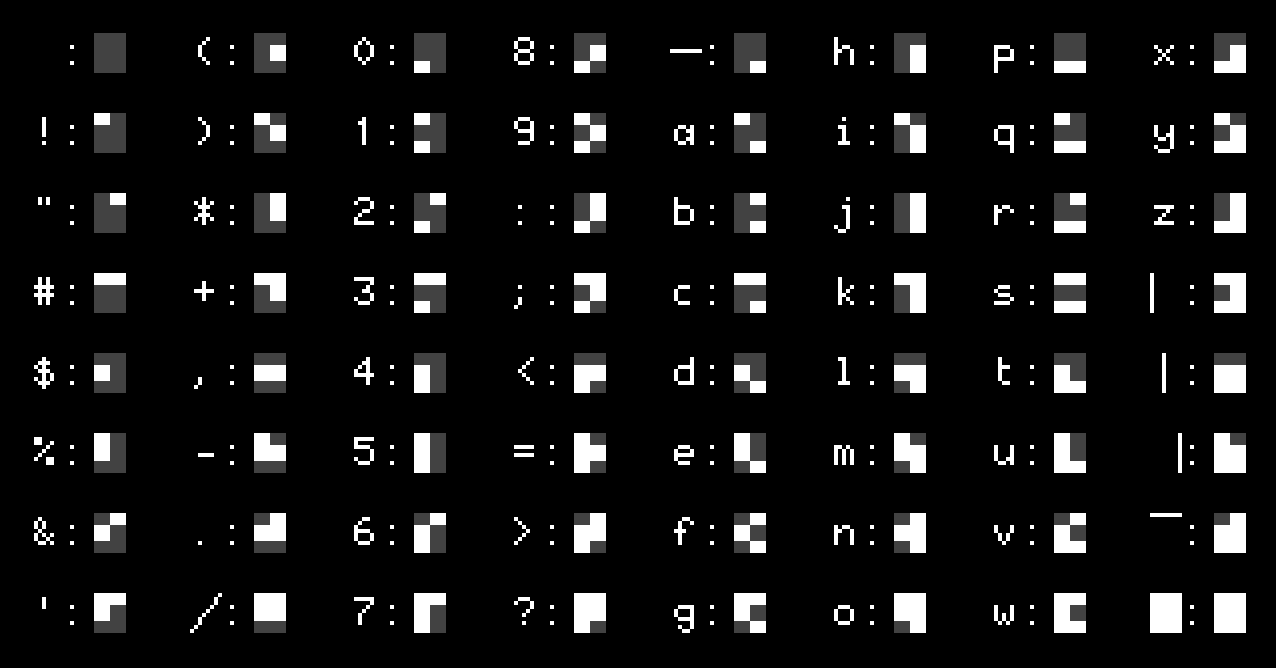
Press Ctrl+G to toggle between G0 (ASCII) and G1 (semi-graphic) character sets. Characters typed while in G1 mode are displayed from the semi-graphic set. The following images show the mapping between G0 keyboard characters and their G1 semi-graphic equivalents:
Supported UTF-8 characters (Minitel conversion)
The Minitel keyboard can type all of these characters (accents, symbols,
arrows, line-drawing), but editing a program in BASTOS’s built-in line
editor is still far more constrained than in a PC text editor (VSCode, for
example): syntax highlighting, copy/paste, search, even AI assistance. To
write and edit BASTOS programs on a PC with that comfort, these characters
can be typed in their normal UTF-8 form, in an ASCII .bas file, with any
text editor: when that file is LOADed, BASTOS automatically converts a
limited set of UTF-8 characters into the equivalent Minitel sequences,
with no action needed from the user.
Accented letters and symbols use the G2 set (SS2 prefix, code 0x19 — a
single-shift, so it doesn’t disturb the character set otherwise in
effect). Arrows also use the G2 set the same
way. Line-drawing characters are plain G0 glyphs instead — the same
character set as digits and letters — so they convert to a single byte,
with no shift at all. Two of them (| for the middle vertical bar, _ for
the bottom horizontal bar) are already plain ASCII, so there’s nothing to
convert: the same byte already is the Minitel code.
To type a character that isn’t directly on the keyboard, most Linux editors (including VSCode) accept Ctrl+Shift+U, followed by the code point digits, then Enter or Space — those are the digits listed in the “Code point” column below. (On Windows: type the digits then Alt+X in editors that support it. On macOS: enable the “Unicode Hex Input” keyboard layout, then Option + digits.)
| Glyph | Code point | UTF-8 sequence | Generated Minitel sequence |
|---|---|---|---|
| à | E0 |
\xC3\xA0 |
\x19Aa |
| è | E8 |
\xC3\xA8 |
\x19Ae |
| ù | F9 |
\xC3\xB9 |
\x19Au |
| é | E9 |
\xC3\xA9 |
\x19Be |
| â | E2 |
\xC3\xA2 |
\x19Ca |
| ê | EA |
\xC3\xAA |
\x19Ce |
| î | EE |
\xC3\xAE |
\x19Ci |
| ô | F4 |
\xC3\xB4 |
\x19Co |
| û | FB |
\xC3\xBB |
\x19Cu |
| ä | E4 |
\xC3\xA4 |
\x19Ha |
| ë | EB |
\xC3\xAB |
\x19He |
| ï | EF |
\xC3\xAF |
\x19Hi |
| ö | F6 |
\xC3\xB6 |
\x19Ho |
| ü | FC |
\xC3\xBC |
\x19Hu |
| ç | E7 |
\xC3\xA7 |
\x19Kc |
| Ç | C7 |
\xC3\x87 |
\x19KC |
| ß | DF |
\xC3\x9F |
\x19\x7B |
| £ | A3 |
\xC2\xA3 |
\x19\x23 |
| § | A7 |
\xC2\xA7 |
\x19\x27 |
| ° | B0 |
\xC2\xB0 |
\x19\x30 |
| ± | B1 |
\xC2\xB1 |
\x19\x31 |
| ÷ | F7 |
\xC3\xB7 |
\x19\x38 |
| ¼ | BC |
\xC2\xBC |
\x19\x34 |
| ½ | BD |
\xC2\xBD |
\x19\x35 |
| ¾ | BE |
\xC2\xBE |
\x19\x36 |
| Π| 152 |
\xC5\x92 |
\x19\x6A |
| œ | 153 |
\xC5\x93 |
\x19\x7A |
| ← | 2190 |
\xE2\x86\x90 |
\x19\x2C |
| ↑ | 2191 |
\xE2\x86\x91 |
\x19\x2D |
| → | 2192 |
\xE2\x86\x92 |
\x19\x2E |
| ↓ | 2193 |
\xE2\x86\x93 |
\x19\x2F |
| ▏ (vertical, left) | 258F |
\xE2\x96\x8F |
\x7B |
| | (vertical, middle) | (keyboard key) | \x7C |
\x7C (unchanged) |
| ▕ (vertical, right) | 2595 |
\xE2\x96\x95 |
\x7D |
| ▔ (horizontal, top) | 203E |
\xE2\x80\xBE |
\x7E |
| ─ (horizontal, middle) | 2500 |
\xE2\x94\x80 |
\x60 |
| _ (horizontal, bottom) | (keyboard key) | \x5F |
\x5F (unchanged) |
Any other UTF-8 characters are not converted and are kept unchanged.
Variable names
- Numeric: one or more characters, e.g.
x,count,total - String: name ending with
$, e.g.name$,buf$ - Keywords are case-insensitive; string content is case-sensitive.
count = 3.14
name$ = "hello"
Assignment with or without LET:
LET x = 42
x = 42
Arrays
Declare with DIM before use. Arrays are 1-indexed.
DIM a(10)             ' 1-D array of 10 numbers
DIM m(5, 5)           ' 2-D array
DIM s$(10, 25)        ' Array of strings, up to 25 chars each
Access:
a(3) = 99
PRINT a(3)
m(2, 4) = 1.5
s$(1) = "first"
String operations
Parentheses are optional for all functions; use them only for grouping.
| Operation | Syntax | Example |
|---|---|---|
| Concatenation | a$ + b$ |
"hello" + " world" |
| Length | LEN s$ |
LEN "abc" → 3 |
| Substring read | s$(start TO end) |
a$(11 TO 13) |
| Substring write | s$(start TO end) = "..." |
a$(1 TO 3) = "XYZ" |
| ASCII code | CODE s$ |
CODE "A" → 65 |
| Character | CHR$ n |
CHR$ 65 → "A" |
| To number | VAL s$ |
VAL "3.14" → 3.14 |
| To string | STR$ n |
STR$ 42 → "42" |
| To string, in a base | STR$ n, base |
STR$(255, 16) → "FF" |
| To string, with a picture format | STR$ n, base, format |
STR$(5, 10, "000.00") → "005.00" |
| Find | INDEX s1$, s2$ |
INDEX "hello", "ll" → 3 |
| Find from pos | INDEX s1$, s2$, start |
|
| Repeat | REP n, s$ |
REP 3, "-" → "---" |
PRINT LEN a$
PRINT CODE k$
z$ = CHR$ 0
ia$ = CHR$(CODE a$ & 223)   ' parentheses for grouping only
STR$’s 2nd argument converts the number (truncated to an integer) to that
base (2-36, digits 0-9 then A-Z):
PRINT STR$(255, 16)   ' "FF"
PRINT STR$(10, 2)     ' "1010"
PRINT STR$(-255, 16)  ' "-FF"
The 3rd argument, if given, is a BASIC-style picture format: # shows a
digit, or a blank if it’s a leading zero that isn’t needed; 0 always
shows a digit (zero-padded); . marks the decimal point. A negative
number’s - sign goes right in front of the (possibly blanked) digits; a
value wider than the template still shows in full rather than being
truncated.
Whether the format includes a . decides how the base is used:
- With a
.: the value is shown in decimal (the base is ignored) — fractional digits are always shown rounded to the number of#/0after the., never blanked. - Without a
.: the value (truncated to an integer) is first converted to the given base, then that digit string is padded/blanked against the format, exactly like the integer part of the decimal case above. This is the natural way to zero-pad a hex or binary conversion to a fixed width:
PRINT STR$(10, 2, "00000000")   ' "00001010" (binary, zero-padded to 8)
PRINT STR$(255, 16, "0000")     ' "00FF" (hex, zero-padded to 4)
PRINT STR$(5, 10, "###.##")    ' "  5.00" (leading zeros blanked)
PRINT STR$(5, 10, "000.00")    ' "005.00" (leading zeros kept)
PRINT STR$(123.456, 10, "###.#")  ' "123.5" (rounded)
PRINT STR$(-5, 10, "###.##")   ' "-  5.00"
Substring indices use the TO keyword. start defaults to 1, end defaults
to LEN s$:
a$ = "Alice and Bob"
PRINT a$(11 TO 13)   ' "Bob"
PRINT a$(TO 5)       ' "Alice"  (start omitted → 1)
PRINT a$(7 TO)       ' "d Bob"  (end omitted → LEN a$)
PRINT a$(TO)         ' whole string
Arithmetic operators
| Operator | Description |
|---|---|
* / % |
Multiply, divide, modulo |
+ - |
Add, subtract |
& |
Bitwise AND |
\| |
Bitwise OR |
Comparison operators
| Operator | Meaning |
|---|---|
= |
Equal |
<> |
Not equal |
< > |
Less / greater than |
<= >= |
Less / greater or equal |
Result is 1 (true) or 0 (false).
Logical operators
IF a > 0 AND b > 0 THEN PRINT "both positive"
IF a = 0 OR b = 0 THEN PRINT "one is zero"
IF NOT a THEN PRINT "a is zero"
Math functions
Parentheses are optional; use them only for grouping sub-expressions.
| Function | Description |
|---|---|
ABS x |
Absolute value |
INT x |
Truncate to integer |
SGN x |
Sign: -1, 0, or 1 |
SQR x |
Square root |
SIN x COS x TAN x |
Trigonometry |
ASN x ACS x ATN x |
Inverse trig |
EXP x |
e^x |
LN x |
Natural logarithm |
RND |
Random float 0.0–1.0 |
PI |
3.1415926536 |
PRINT ABS -5
PRINT SQR 2
PRINT INT(a / b)    ' parentheses for grouping
RAND seed seeds the pseudo-random generator RND reads from, so a
program can reproduce the same sequence of RND values across runs (handy
for testing, or for a game that wants a repeatable level from a given
seed):
RAND 42
Control structures
Multiple statements on one line (:)
Several statements can be placed on the same line, separated by ::
10 a = 1 : b = 2 : c = 3
20 PRINT a : PRINT b : PRINT c
With IF, the statement (or the :-separated run of statements) after
THEN only runs if the condition is true; otherwise the rest of the
line is skipped entirely:
10 IF x > 0 THEN PRINT "positive" : counter = counter + 1
A whole FOR/NEXT loop can also fit on a single line:
10 FOR i = 1 TO 3 : PRINT i : NEXT
REM and comments (')
REM adds a comment on its own line. It is not a control structure per se;
it simply causes execution to continue to the next line without performing
any action.
REM "comment"
10 REM "Initialize variables"
20 x = 0
30 REM "This is a comment"
40 PRINT x
A single quote ' also introduces a comment, but at the end of a line,
after one or more statements: everything after ' through the end of the
line is ignored at runtime, including any : it contains. The comment is
kept in the stored program and reappears verbatim with LIST.
10 x = 1 ' initialize x
20 PRINT x : PRINT x * 2 ' print x then its double
IF / THEN / ELSE
IF expression THEN linenumber
IF expression THEN statement [: statement ...]
IF expression THEN ... ELSE linenumber
IF expression THEN ... ELSE statement [: statement ...]
10 INPUT "x: ", x
20 IF x < 0 THEN PRINT "negative" ELSE PRINT "positive or zero"
30 IF x = 0 THEN 10
ELSE is optional. When present, it introduces the statement(s) to run when
the IF test is false; when absent, a false test simply skips to the end of
the line, as before. Only one of the two clauses ever runs — once a true
THEN clause finishes (including any further :-separated statements), a
following ELSE on the same line is always skipped, and vice versa.
ELSE, like THEN, accepts either a bare line number (short for GOTO
linenumber) or one or more :-separated statements:
10 IF a = 0 THEN 100 ELSE 200
A bare target on THEN/ELSE can also be a quoted label name
(short for GOTO "name"), resolved the same way — see LABEL below:
10 IF a = 0 THEN "zero" ELSE "nonzero"
IF statements can be nested on the same line via :; each ELSE binds to
its nearest still-unmatched IF, the same way most other languages resolve
this:
10 IF a = 1 THEN PRINT "a": IF b = 1 THEN PRINT "b too" ELSE PRINT "not b"
ELSE cannot be directly followed by another IF — the clause after ELSE
(like the clause after THEN) must start with a plain statement, not IF
itself. To test a third case, put a harmless placeholder statement right
after ELSE, then chain the nested IF onto it with : — LET x=x (an
assignment with no effect) is a common choice:
10 IF x < 0 THEN PRINT "negative" ELSE LET x=x: IF x = 0 THEN PRINT "zero" ELSE PRINT "positive"
This prints exactly one of the three labels. If x < 0 is true, THEN
prints “negative” and the whole ELSE (including the nested IF) is
skipped to the end of the line. If x < 0 is false, execution jumps
straight to ELSE, runs the harmless LET x=x, then falls through to the
nested IF x = 0 ... ELSE ..., which decides between “zero” and
“positive”.
⚠️ Common pitfall: IF a > 0 THEN a=a-1 does not do what it looks like —
the same trap exists right after ELSE. BASTOS does not read a=a-1 as an
assignment, but as a comparison (is a equal to a-1?), which evaluates to
0 or 1. That result is then treated exactly like the shortcut line
number of a GOTO (the same mechanism as THEN 10): the program actually
jumps to line 0 or 1, which is neither an assignment nor a harmless
no-op. To write a real assignment after THEN/ELSE, use LET explicitly:
IF a > 0 THEN LET a = a - 1.
FOR / NEXT
FOR var = start TO end
FOR var = start TO end STEP step
NEXT var
NEXT
varmust be a single letterA–Z.- Negative
STEPcounts down. - Loops may be nested.
NEXTwith no variable always closes the innermost loop currently active.NEXT varmust name that same innermost loop; naming an outer loop that hasn’t been closed yet is an error.
10 FOR i = 1 TO 5
20 PRINT i
30 NEXT i
40 FOR i = 10 TO 1 STEP -1
50 PRINT i
60 NEXT i
10 FOR i = 1 TO 2
20 FOR j = 1 TO 2
30 PRINT i; j
40 NEXT ' closes the j loop (the innermost one)
50 NEXT i ' closes the i loop
WHILE / WEND
WHILE condition
WEND
- The condition is checked every time
WHILEis reached, and again each timeWENDsends execution back to it — unlikeFOR, there’s no loop variable, so it can depend on anything. - As long as the condition is true, execution falls through into the loop
body; when
WENDis reached, it jumps back toWHILEto check again. - As soon as the condition is false, execution skips straight past the
matching
WENDwithout running the body. - Loops may be nested, up to 8 deep.
WENDwith no activeWHILEis a run-time error.- Jumping back into an active loop’s
WHILEsome other way than through its ownWEND(a bareGOTO, for instance) is a run-time error — the loop can only be re-checked by reaching itsWEND. - If a
WHILE’s matchingWENDis never reached while its condition is false (for instance, noWENDfollows it anywhere in the program), the program simply stops there — the same asGOTOto a line number that doesn’t exist. This is not treated as an error, since there’s no reliable way to tell it apart from aWENDthat would have been reached on a different run.
10 i = 1
20 WHILE i <= 5
30 PRINT i
40 i = i + 1
50 WEND
60 PRINT "done"
Another example, with a condition that isn’t just counting up: the greatest
common divisor (GCD) via Euclid’s algorithm, from which the least common
multiple (LCM) follows (a * b / gcd(a, b)):
10 INPUT "A: ", A: INPUT "B: ", B: X = A: Y = B
20 WHILE Y <> 0: T = X % Y: X = Y: Y = T: WEND
30 PRINT "GCD ="; X
40 PRINT "LCM ="; A * B / X
GOTO
GOTO
linenumber
GOTO "label"
10 PRINT "loop"
20 GOTO 10
GOTO also accepts a label name in quotes instead of a line number — see
LABEL below.
GOSUB / RETURN
GOSUB linenumber    ' Call subroutine
GOSUB "label"        ' Call subroutine by label name
RETURN              ' Return to caller
Up to 32 nested calls.
10 GOSUB 1000
20 END

1000 PRINT "In subroutine"
1010 RETURN
LABEL
LABEL "name"
LABEL START
Gives a line a name so GOTO/GOSUB — and a bare target on THEN/ELSE
(see IF / THEN / ELSE) — can jump to it without knowing
its line number — handy for a program that gets renumbered or edited over
time.
1000 LABEL "decadix"
1010 PRINT "In decadix"
1020 RETURN
10 GOSUB "decadix"
20 END
The first time a given label name is used as a jump target (GOTO/GOSUB,
or a bare THEN/ELSE target), BASTOS looks for the matching LABEL
"name" line — either because it already ran (the normal case, since
LABEL executes like any other statement, in program order), or if it
hasn’t run yet, by scanning the whole program for it. Either way, the line
number is then remembered, so later jumps to the same label are instant. A
label must be the very first statement on its line (1000 LABEL
"decadix", optionally followed by more :-separated statements) to be
found by that scan — used elsewhere on a line, LABEL still works when it
actually runs, but won’t be found ahead of time. Targeting a label that
doesn’t exist anywhere in the program is an error.
LABEL START scans the whole program in a single pass and remembers every
LABEL
"name"
line it finds, up front — useful at the start of a program
to avoid paying the scan cost on the first jump to each label:
10 LABEL START
20 GOSUB "decadix"
30 END
1000 LABEL
"decadix"
1010 PRINT "In decadix"
1020 RETURN
A plain RUN clears all variables, including any remembered label
positions (from either form of LABEL) — so editing a program and then
editing a line that carries a LABEL, without an intervening RUN, can
leave a stale jump target behind until the next RUN.
CLEAR/END also clear remembered label positions, the same as any other
variable — a label is just a variable in its own namespace. Likewise,
FREE’s variable count includes labels.
PAUSE
PAUSE milliseconds
PRINT "Wait 2 seconds..."
PAUSE 2000
PRINT "Done"
Files and Database
Files
Read file content as a string.
content$ = FILE "filename"              ' Read entire file
data$ = FILE "filename", offset, size   ' Read size bytes at offset
The FILE function returns the file content as a string. The full form reads
the entire file, while the partial form reads a specific number of bytes
starting at a given offset.
10 REM "Read configuration file"
20 config$ = FILE "config.txt"
30 PRINT config$
Example reading and displaying a file line by line with 39-column limit:
10 CLS ;AT 24,1;CURSOR 0
20 FAST
1000 a$=FILE "bastos.txt"
1100 deb=1
1110 fin=INDEX a$,"\n",deb
1120 IF fin<=0 THEN 2000
1130 l$=a$(deb,fin-1)
1140 deb=fin+1
1150 PRINT l$( TO 39)
1210 PAUSE 50
1220 GOTO 1110
2000 CURSOR 1
This program reads the entire file into memory (line 1000), then parses it line
by line using INDEX to find newlines (line 1110). Each line is extracted
(line 1130) and only the first 39 characters are displayed (line 1150),
ensuring proper display on a 40-column Videotex screen.
Database
BASTOS provides a simple key/value store organized in numbered sets.
GET set              ' Returns all keys of the set as a string
GET set, "key"       ' Returns the value associated with a key
PUT set, "key", "value"  ' Store or update a key/value pair
DB LIST set            ' List all entries in set
DB ERASE set, "key"    ' Delete entry by key from set
Sets are numbered starting from 0. Keys and values are strings. WiFi, Minitel, and FTP connections use specific sets to persist their configuration.
PUT 1, "city", "Paris"
PRINT GET(1, "city")    ' "Paris"
GET set returns all keys joined by \n. Use INDEX to iterate over them:
10 keys$ = GET 1
20 pos = 1
30 nl = INDEX(keys$, "\n", pos)
40 IF nl = 0 THEN END
50 key$ = keys$(pos TO nl - 1)
60 PRINT key$ " = " GET(1, key$)
70 pos = nl + 1
80 GOTO 30
Network
WiFi
WIFI SCAN                    ' Scan available access points
WIFI "ssid"                  ' Connect by SSID (prompts for password if needed)
WIFI START "ssid"            ' Same as above (START is the default action)
WIFI n                       ' Connect to scanned network number n
WIFI LIST                    ' List saved networks
WIFI STATUS                  ' Show current connection status
WIFI ERASE "ssid"            ' Remove a saved network
WIFI STOP                    ' Disconnect
After WIFI SCAN, networks are numbered; use WIFI n to connect by index.
URN format
Network connections are identified by a URN whose parts are separated by ::
protocol:host:port[:path[:login[:password]]]
For ftp, login defaults to anonymous and password to
pat@frites.be if omitted.
| Protocol | Description |
|---|---|
tcp |
Raw TCP socket |
ws |
WebSocket |
ftp |
FTP |
Examples:
tcp:go.minipavi.fr:516
ws:3611.re:80:/ws
ftp:abasty-retro.fr:2121:bastos
ftp:files.example.com:21:/pub:myuser:mypassword
ws:mntl.joher.com:2018:/?echo
Minitel
Connect to a Minitel server (Videotex terminal emulation) and save it by name.
MINITEL "name", "urn"        ' Connect and save under "name"
MINITEL START "name", "urn"  ' Same as above (START is the default action)
MINITEL "name"               ' Reconnect to a saved connection
MINITEL LIST                 ' List saved Minitel connections
MINITEL ERASE "name"         ' Remove a saved connection
Examples:
MINITEL "minipavi", "tcp:go.minipavi.fr:516"
MINITEL "3615", "ws:3615co.de:80:/ws"
MINITEL "3615"               ' reconnect using saved name
Once connected, the program suspends until the user exits connected mode
(ESC ESC) — a :-chained statement after MINITEL on the same line only
runs at that point, not right after the connection is made:
10 MODE 2 : MINITEL "3615" : MODE 1
Here, MODE 1 only runs once the user has come back from connected mode.
FTP
FTP "name", "urn"            ' Connect and save under "name"
FTP START "name", "urn"      ' Same as above (START is the default action)
FTP "name"                   ' Reconnect to a saved connection
FTP LIST                     ' List saved FTP connections
FTP STATUS                   ' Show current FTP status
FTP PUT "file"               ' Upload a file (same name locally and remotely)
FTP GET "file"               ' Download a file (same name locally and remotely)
FTP CAT                      ' List remote files
FTP CAT "pattern"            ' List remote files matching a glob pattern
FTP ERASE "name"             ' Remove a saved connection
FTP STOP                     ' Disconnect
Example session:
10 FTP "bastos", "ftp:abasty-retro.fr:2121:bastos"
20 FTP STATUS
30 FTP GET "snake.bas"
40 FTP STOP